Terminal interface
Klea’s terminal interface is a full-screen Textual
application. It talks to the same backend API as the Web interface, so the
sessions, models and graph state are shared. It is started with
klea-rag tui (RAG) or klea tui (agent).
The Textual dependency is an optional extra; install it with the tui
extra (pip install klea-utils[tui] or the full extra). Without it,
tui exits with a message pointing at the extra. The process title is set
to the frontend name (for example klea-agent-tui) so it is identifiable in
ps/top instead of python.
Project environment
The TUI tells the backend which project to run the session’s bundled tools in.
By default it sends its current directory, its full environment, and the Python
interpreter running the client, so the tools use the same project variables and
virtual environment as your terminal. The interpreter defaults to the Python
that launched the TUI: if you start klea from a global install while a
project venv is active, pass --interpreter path/to/.venv/bin/python (or
install/run Klea in that venv) so the bundled server itself uses the venv. The
path is used as-is, so a venv’s bin/python symlink works. The settings are
sent with every query, so a retry or a resumed run uses the current terminal’s
environment.
Option |
Meaning |
|---|---|
|
Working directory for the tools (default: the current directory) |
|
Add or override an environment variable (repeatable) |
|
Python interpreter for the bundled tools (default: this client’s) |
|
Do not forward the environment to the server |
When no project root has been set with /cwd, the client’s working directory
is also the default root for the session’s file tools and for project
instruction (AGENTS.md/CLAUDE.md) discovery. Context forwarding is only
available for a local (loopback) server; a remote backend is skipped with a
note, because it cannot see the client’s files or interpreter.
The browser-based web client has no local tool environment; its chats use the backend’s cwd, environment, and interpreter. See Web interface.
The layout is a horizontal split: a chat pane on the left and a full-height status pane on the right. The title and server line, and the active chat’s name and id, sit at the top of the status pane.
Chat pane
The chat pane holds a transcript/inspector toggle, the transcript, the live turn-status line, and the input. The answer appears when the turn completes (there is no live token typing). The input soft-wraps and grows with the text (up to a cap, then it scrolls); the cursor sits on the bottom line and the box grows upward. Enter sends and Ctrl+J inserts a newline (Shift+Enter also works on terminals that report the shifted key).
The transcript renders each message MIME-aware, mirroring the web: Markdown for the agent’s reply, syntax-highlighted diffs and code blocks for file changes and tool output, and a plain-text fallback for anything that cannot be rendered (there is no inline media in a terminal). A long message is collapsed to a few lines; click it, or focus it and press Enter, to expand or collapse. Drag over text to select it; Ctrl+C copies the selection. Text in the status/inspector panes, dialogs and prompts is selectable too, and a drag in a message does not toggle it.
A failed run that can be recovered shows a Retry action; Ctrl+R resumes it from its checkpoint, re-running only the failed step. If the agent pauses for your input, the ask replaces the composer below the transcript (see below), so the chat stays scrollable until you answer or cancel.
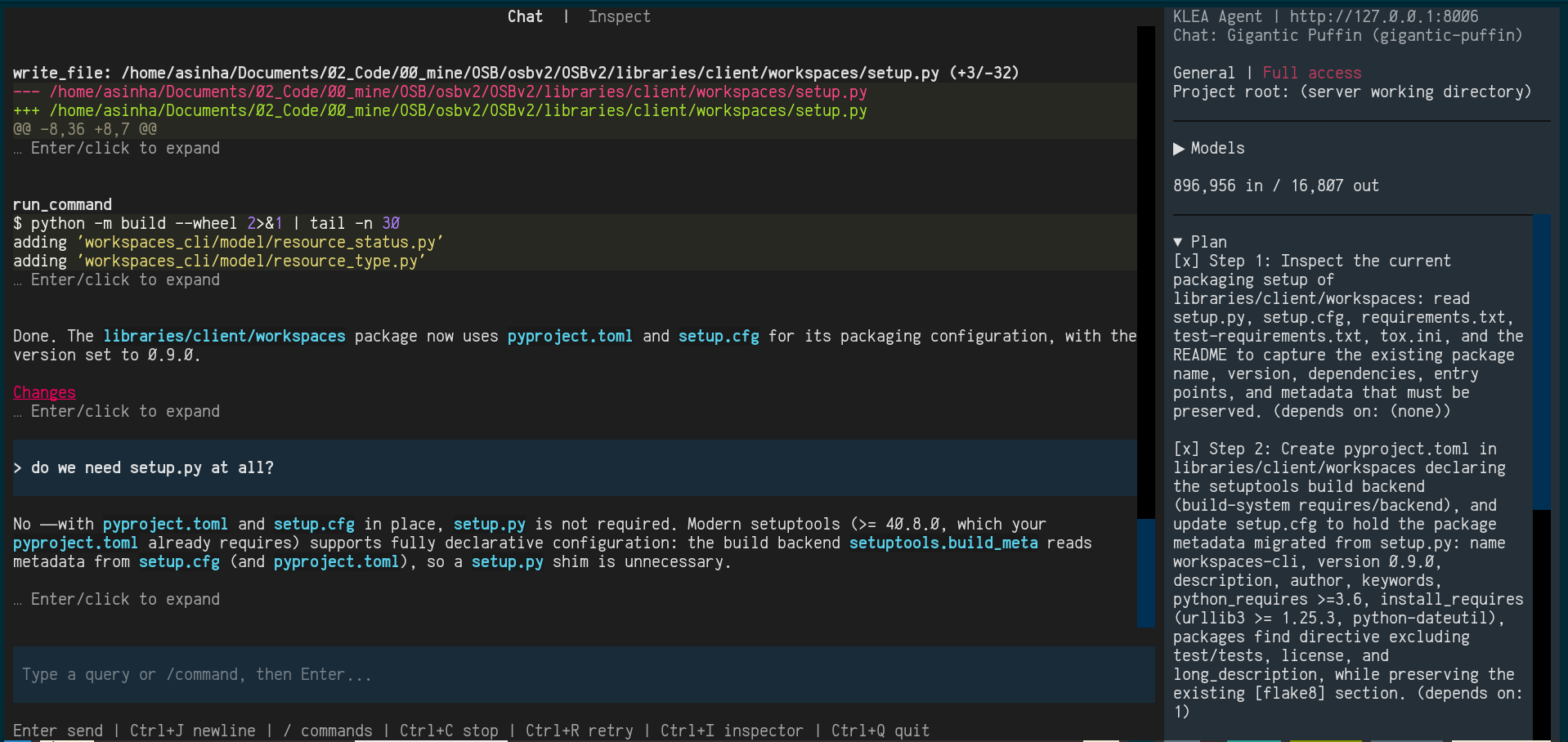
The chat pane: the transcript, the live turn-status line and the status pane.
Status pane
The right pane summarises the current chat: its title and server line, its
name and id, and, in the agent, a read-only mode and tool access
line (change them with /mode or /access; there are no in-panel
selectors) plus a read-only project root. Below that are the chat’s
selected models – a collapsible group (collapsed by default) listing one
role per line with its provider, and a warning when a required model or API key
is still missing – the running token totals (thousands-separated), and the
per-step state sections that stream while the graph runs. Everything down to
the token totals stays fixed while only the state sections scroll. The groups
are spaced apart, and the state sections sit on the pane’s own background.
Inspection pane
Press Ctrl+I (or Tab, which is the byte a terminal sends for it) to switch the same pane to the inspection view: the per-step trace behind the latest answer (each pipeline step’s heading, timing, summary and raw structured details), grouped per query.
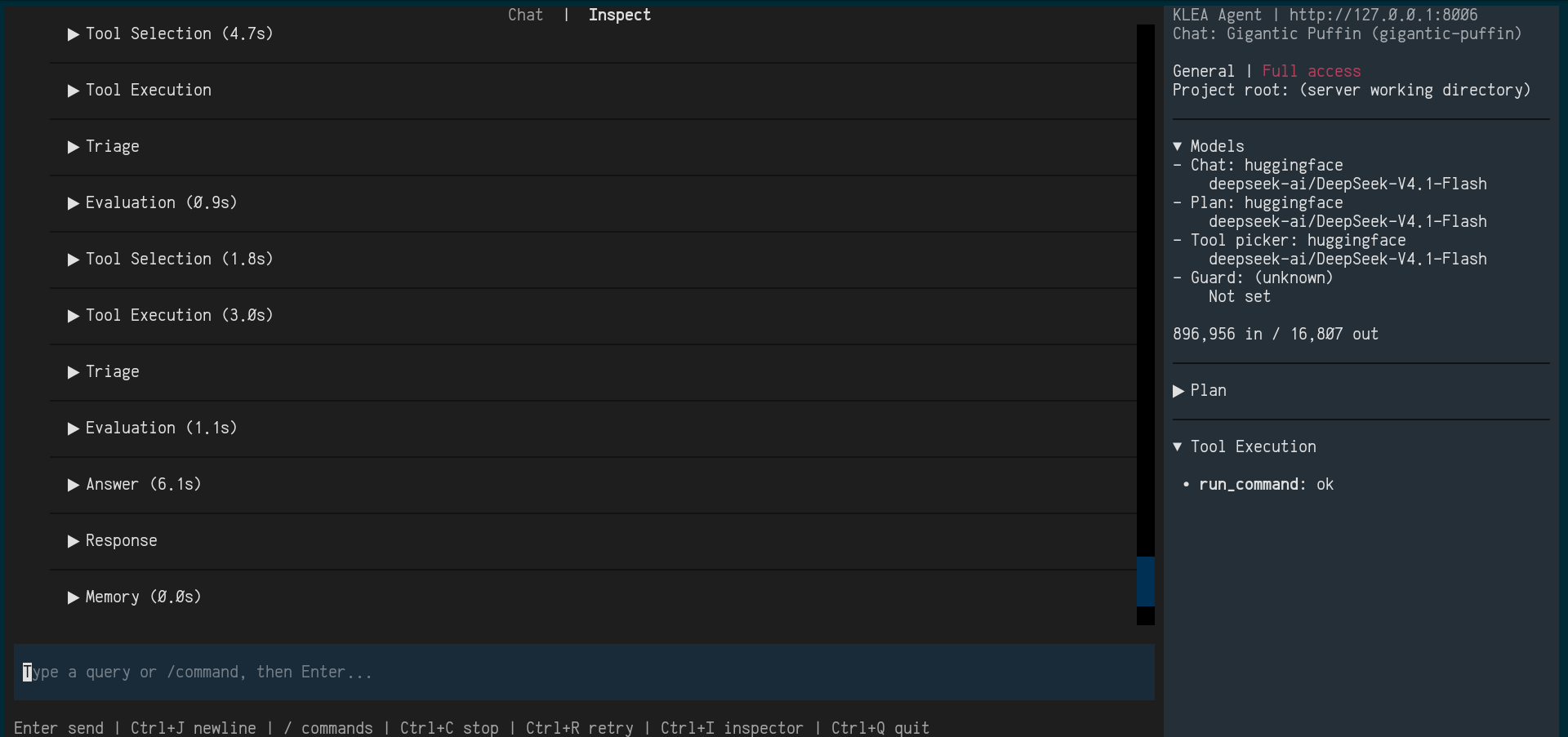
The inspection pane: the per-step trace behind the latest answer.
Keys
Key |
Action |
|---|---|
Enter |
Send the query or |
Ctrl+J |
Insert a newline (the input grows, then scrolls, for a long entry) |
Shift+Enter |
Insert a newline too, on terminals that report the shifted key |
Ctrl+C |
Copy selected text |
Ctrl+Shift+C |
Stop the running query (F12 is the fallback where the terminal intercepts the shortcut) |
Ctrl+R |
Retry the last failed run (when recoverable) |
Ctrl+I |
Toggle the transcript / inspector view (Tab is equivalent, as a terminal sends Ctrl+I as Tab) |
Ctrl+S |
Open the session picker |
Ctrl+M |
Open the model dialog |
Ctrl+Q |
Quit (asks to confirm first) |
Copying uses the terminal’s OSC 52 clipboard and also tries a platform
clipboard tool when one is available (wl-copy/xclip/xsel on
Linux, pbcopy on macOS, clip on Windows), so terminals that ignore
OSC 52 can still paste into another application. A brief notification
confirms the copy. In a remote/SSH session only OSC 52 or the terminal’s
own selection modifier (often Shift) can reach your local clipboard.
Sessions
The TUI shows one active session at a time. Ctrl+S (or /sessions)
opens a picker listing the server’s chats; choosing one switches to it, and
the picker can also rename or delete a chat (deleting asks for
confirmation first). The highlighted chat’s first-query preview is shown
below the action buttons. Switching is refused
while a run is streaming. On launch, --continue opens the most recently
updated chat and --resume <chat_id> opens a specific one.
Commands
Type / in the input for a command menu. /help lists the available
commands: the TUI merges the server’s command catalogue with the commands it
handles itself. A client-side command (/help, /new, /sessions,
/model, /exit) runs locally; a server-side command (such as /mode
or /access, the agent’s operating mode and tool access level) is sent to
the agent. An unknown command is reported locally and never sent. /exit
stops any active run and quits immediately (typing it is deliberate, so – unlike
Ctrl+Q – it does not ask to confirm). See
Session commands for the list.
Models and API keys
Ctrl+M (or /model) opens the model dialog. Each role’s model is
chosen with a provider field, a model field, and an optional custom
URL, filled from the models.dev catalogue; free text
is accepted for models not in the catalogue. Saving applies the models to the
current chat and updates the session default, so a new chat starts from the
latest selection; a chat that has already saved its own models keeps them, and
a later change elsewhere only affects chats that have not chosen their own.
Manage API keys opens the provider-scoped credentials editor: keys are
stored per provider on the server, returned only in masked form, and expire
after a period unused.
Human-in-the-loop
When the agent needs input, the ask replaces the composer below the
transcript (the input box is hidden while it is active, so the chat stays
scrollable): a plan awaiting review shows the plan with Approve /
Request changes / Cancel controls, a plan blocked on a missing fact
shows one field per question, and a tool call that would touch a path outside
the project directory (or a sensitive file inside it, such as .env) shows
one Once / Session / Deny choice per path. Answering (or
requesting a revision) resumes the same run with its state intact.
Identity
The user id resolves in one place: --user-id, else KLEA_USER_ID, else
a persisted TUI-local UUID. The local UUID is sent to the server only when it
is a loopback address, so a local TUI does not accidentally share an identity
with a remote deployment.
Note
The screenshots on this page are captured from a local deployment and may lag the latest interface.
See also
Web interface – the browser interface over the same backend
Session commands – the session-command catalogue
Create and use a RAG system – build a RAG system and query it through this interface
Klea RAG – the pipeline the inspection pane exposes